




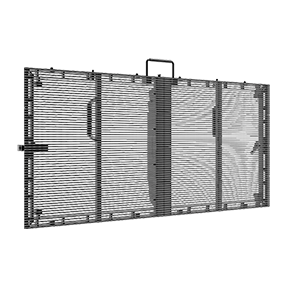
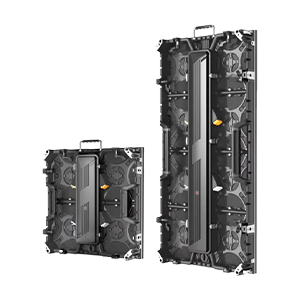
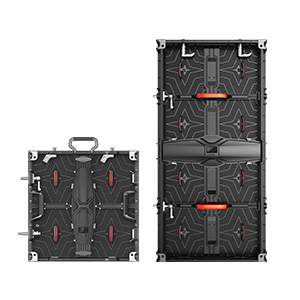

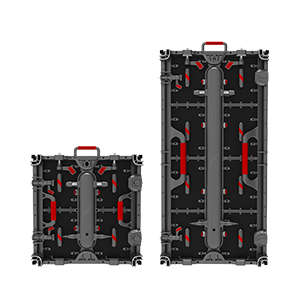








































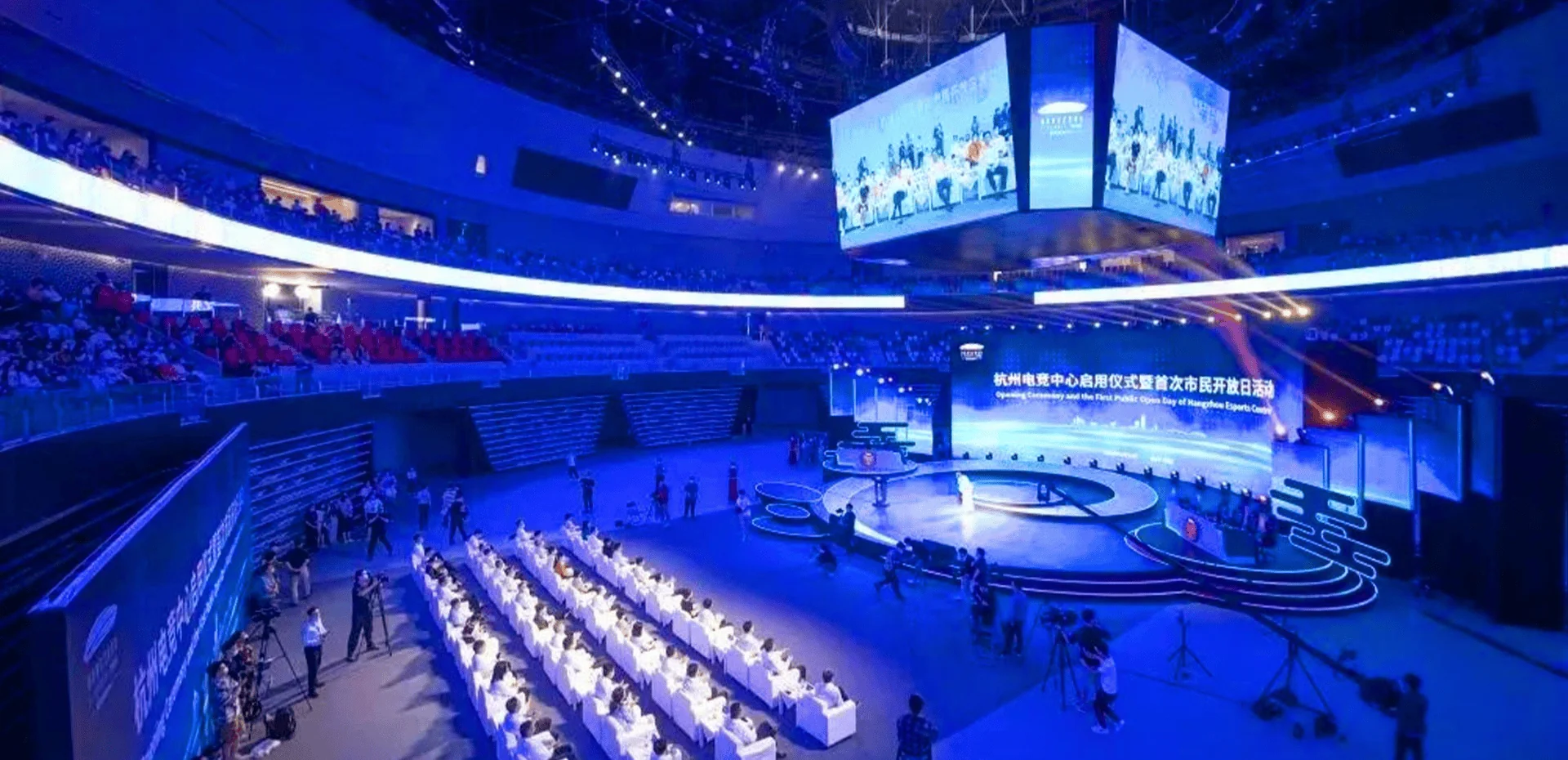

Few things frustrate retail managers and event coordinators more than walking up to an LED poster display that refuses to update—spinning loading icons, failed file transfers, or the dreaded “device offline” message. Wireless convenience is a major selling point for any WiFi control poster LED display, but connectivity problems inevitably arise in crowded commercial environments. Over years of supporting mall operators, restaurant chains, and rental houses, we have developed a systematic approach to diagnosing these issues. Below are the three most common failure points and their fixes.
Network Band Confusion: 2.4GHz vs. 5GHz
The most overlooked cause of connection failures on a WiFi control poster LED display is frequency band mismatch. Many LED poster display control modules operate exclusively on 2.4GHz WiFi because it offers better range and wall penetration. However, most modern smartphones and tablets default to 5GHz networks for speed. When your device and the WiFi control poster LED display are on different bands, they cannot communicate. The fix: ensure your controlling device connects specifically to a 2.4GHz SSID. If your router broadcasts combined bands, create a dedicated 2.4GHz guest network for the LED poster display. For venues with dense WiFi interference (convention centers, food courts), we also recommend manually selecting a less congested channel (1, 6, or 11) through your router settings.
IP Address Conflicts and DHCP Issues
A WiFi control poster LED display that connects intermittently or drops after a few minutes usually points to IP address conflicts. Most LED poster display units ship with DHCP enabled, meaning they request an automatic IP from your router. When multiple devices compete for the same pool, or when the router’s lease time expires, the display may lose its assignment. The solution is assigning a static IP address to your WiFi control poster LED display via the router’s MAC address reservation feature. Access your router admin panel, locate the display’s MAC address (printed on the control card or shown in the display’s info menu), and reserve a fixed IP outside the DHCP range. Then power-cycle both the router and the LED poster display.
App Version and Firmware Mismatches
Sometimes the hardware and software are fine, but the communication protocol has drifted. We have encountered WiFi control poster LED display units where the mobile app updated automatically, but the display’s firmware remained several versions behind. This mismatch breaks command recognition. Always check your LED poster display manufacturer’s website for the latest firmware. On LEDFUL units, the update process takes under two minutes via USB. Additionally, clear the app cache on your controlling device—stored network profiles can interfere with new connections.
LEDFUL: Reliable Wireless Control, Simplified
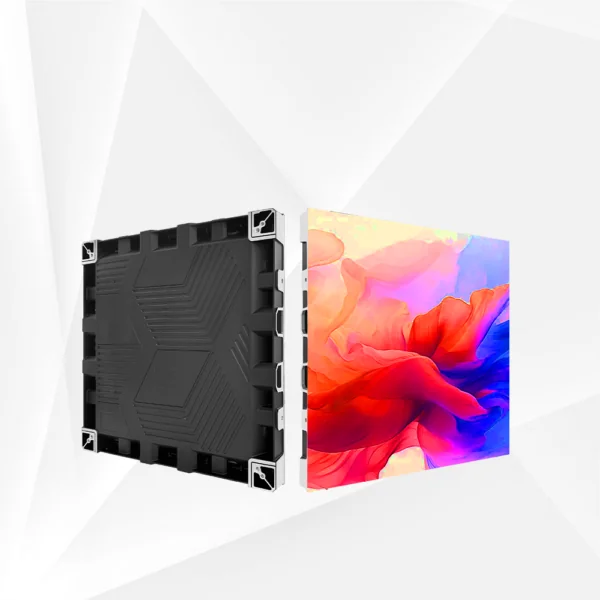
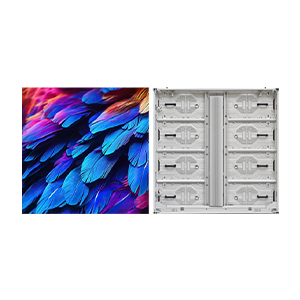
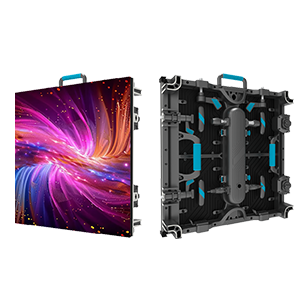
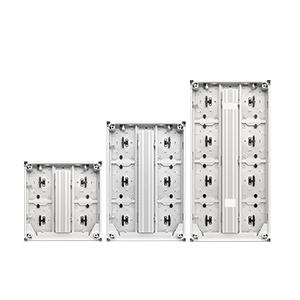
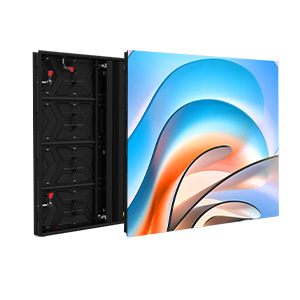
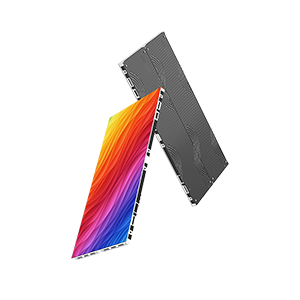
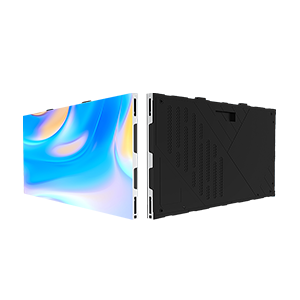
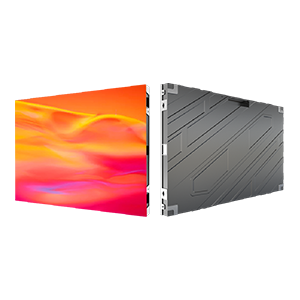
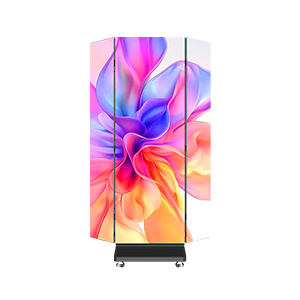
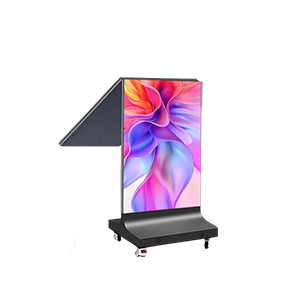
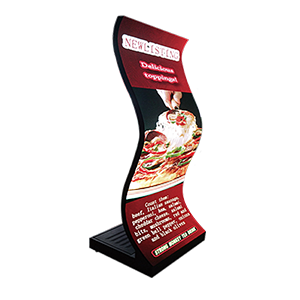
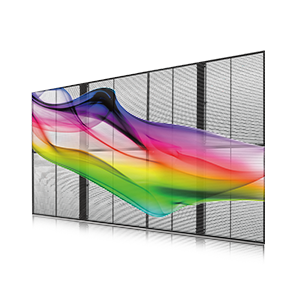
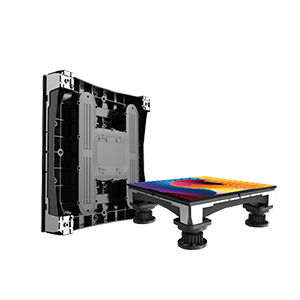
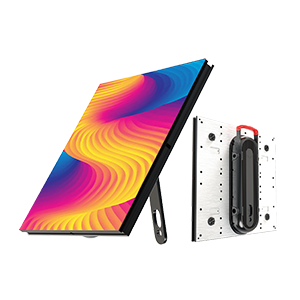
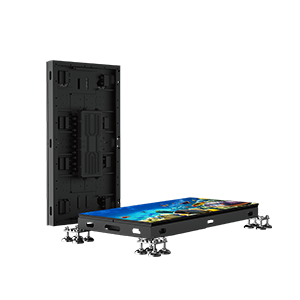
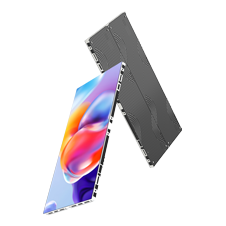
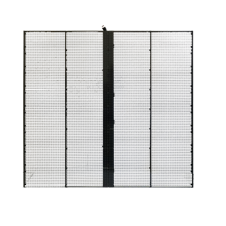
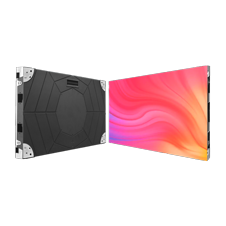
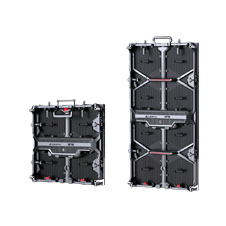
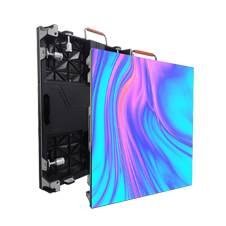
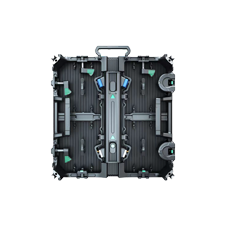
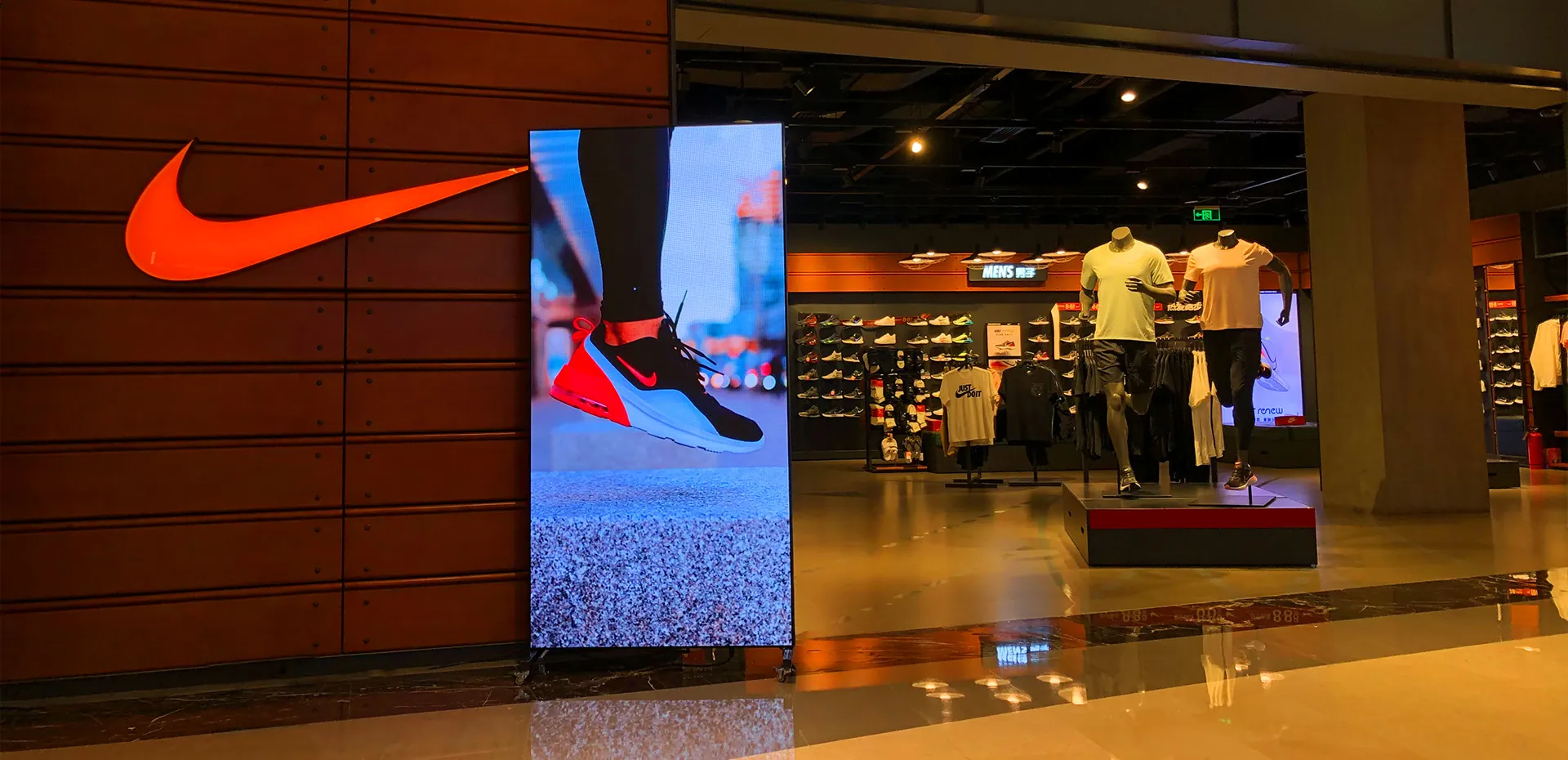
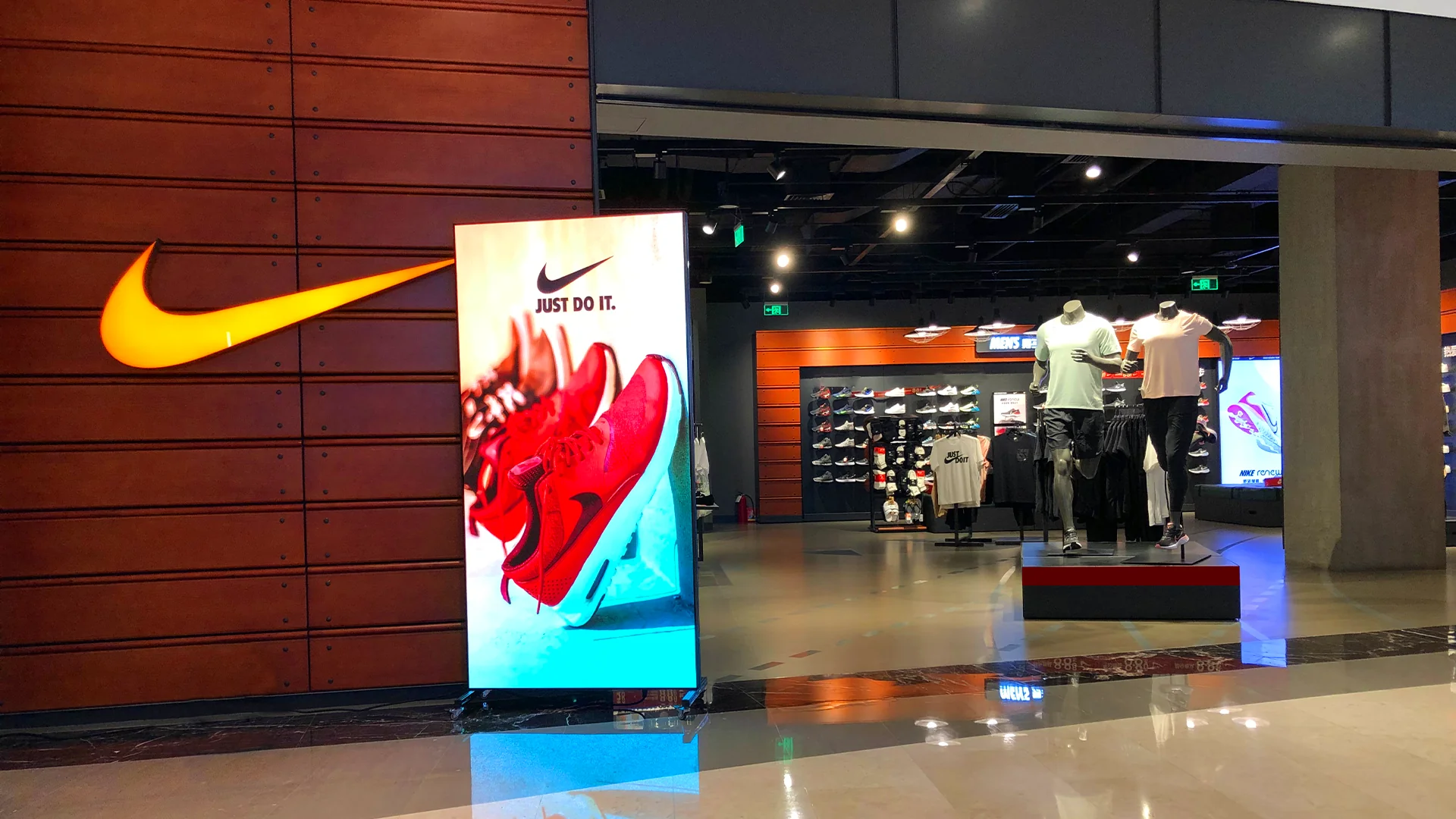
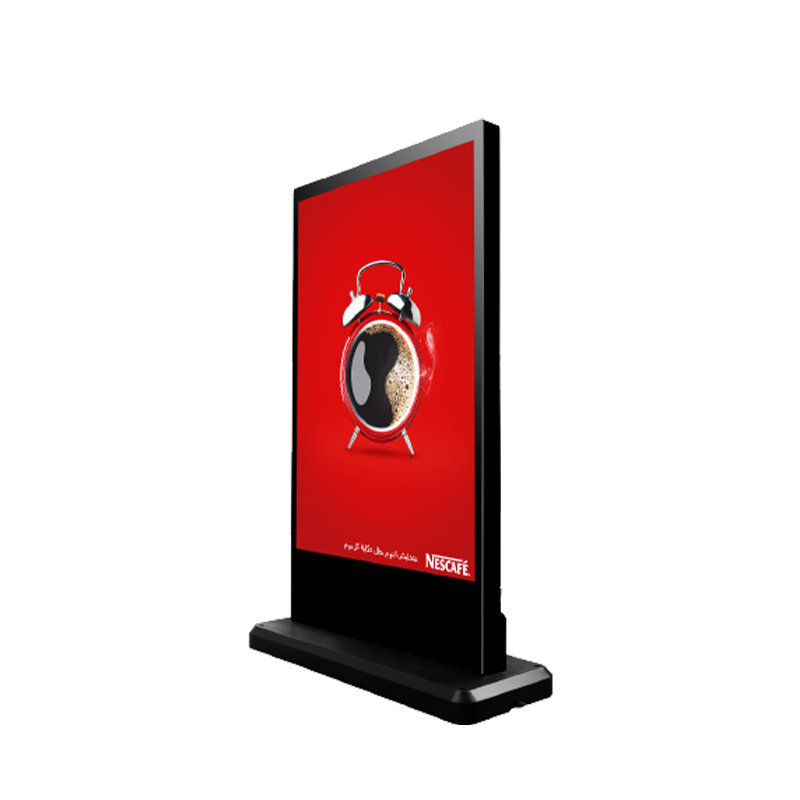
At LEDFUL, we engineer our LK Series LED poster display to minimize these headaches. The LK Series is a versatile WiFi control poster LED display available as kiosks, posters, or pylons, featuring double-sided design and dozens of control options: WiFi, APP, cloud cluster, HDMI, USB, and more. Whether you need front or back service, customizable sizing, or seamless integration into existing networks, LEDFUL delivers. Our LED poster display units include diagnostic LEDs and a simple IP reset button. When you choose LEDFUL, you are not just buying a screen—you are getting a partner who provides firmware updates, setup guides, and responsive technical support. Keep your content flowing and your audiences engaged.